Mostrando entradas con la etiqueta Configuration TFS. Mostrar todas las entradas

viernes, 5 de octubre de 2012

Links Útiles #14 Team Foundation Server

1-Cambiar la url del application server de TFS 2010

http://www.tjopsta.net/2010/04/16/how-to-change-team-foundation-server-2010-urls-for-use-externally/

2-Reducir el tamaño de las bases de datos de TFS con el plugin Test Attachment

http://blogs.msdn.com/b/granth/archive/2011/02/12/tfs2010-test-attachment-cleaner-and-why-you-should-be-using-it.aspx

http://geekswithblogs.net/terje/archive/2011/11/15/guide-to-reduce-tfs-database-growth-using-the-test-attachment.aspx

3-Licencias en TFS Web Access 2012

http://bartwullems.blogspot.com.ar/2012/09/tfs-2012-some-features-of-team-web.html

4-TFS 2012 power tools

http://blogs.msdn.com/b/bharry/archive/2012/09/15/tfs-2012-power-tools-are-now-available.aspx

5-TFS Add-in para word: permite importar todos los work items desde TFS

http://vsarword4tfs.codeplex.com/

domingo, 12 de febrero de 2012

Cambiar el tamaño de los attachments

image

There where people who changes the attachment size using code:

TeamFoundationServer tfs = TeamFoundationServerFactory.GetServer(@"yourtfsserver/.../DefaultCollection");
ITeamFoundationRegistry rw = tfs.GetService<ITeamFoundationRegistry>();
RegistryEntryCollection rc = rw.ReadEntries(@"/Service/WorkItemTracking/Settings/MaxAttachmentSize");
RegistryEntry re = new RegistryEntry(@"/Service/WorkItemTracking/Settings/MaxAttachmentSize", "20971520");//20MB
       
if (rc.Count != 0)
{   
    re = rc.First();   
    re.Value = "20971520";
}
       
rw.WriteEntries(new List<RegistryEntry>() { re });

But the only thing you had to do in order to change the attachment size in TFS 2010 is to change_tfs_resources to the collection name, as follow:

http://localhost:8080/tfs/_tfs_resources/WorkItemTracking/v1.0/ConfigurationSettingsService.asmx?op=SetMaxAttachmentSize 

TO:

http://localhost:8080/tfs/<CollectionName>/WorkItemTracking/v1.0/ConfigurationSettingsService.asmx?op=SetMaxAttachmentSize

Descargar automáticamente la última versión al editar un archivo

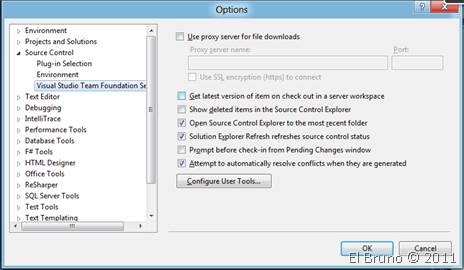
Para el primer caso, debemos acceder a las opciones de Visual Studio 2010, desde el menú “Tools // Options”. Dentro de las mismas acceder a la sección “Source Control // Visual Studio Team Foundation Server” y marcar o desmarcar la opción “Get latest versión of ítem on check out in server workspace”. Esta opción nos asegura que siempre tengamos la última versión de cualquier archivo que estemos editando.

clip_image001

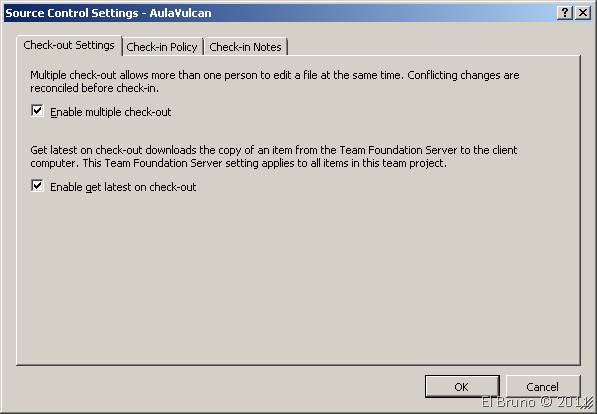
Ahora bien, si lo que queremos es que esta forma de trabajo se aplique para todos los integrantes de un Team Project, podemos aplicar esta configuración a nivel de TP. Para esto, desde en panel Team Explorer, seleccionamos el Team Project correspondiente, luego desplegamos el menú contextual y seleccionamos “Source Ccontrol”. Dentro de la sección “Chec-out settings”, la opción “Enable get latest on check-out” nos permite definir este funcionamiento.

clip_image002

Fuente:

http://geeks.ms/blogs/elbruno/archive/2012/02/12/tfs2010-howto-configurar-la-descarga-automatica-de-la-ultima-version-desde-el-ide-o-desde-tfs.aspx


domingo, 5 de febrero de 2012

TFS 2010 – Application Tier Version Control Cache Configuration details

The following applies to the AT cache only (the real proxy is close but not identical as it does not have access to the TFS registry)

The TFS registry is the first place we look for settings:

  • /Service/VersionControl/Settings/FixedSizeBasedPolicy indicates a fixed size cache (in MB)
  • /Service/VersionControl/Settings/CacheLimitPercent is the alternative (i.e. % of the available disk space occupied rather than fixed size)
  • /Service/VersionControl/Settings/CacheDeletionPercent is how much of the cache should be deleted when the threshold is reached (think of it as hysteresis)
  • /Service/VersionControl/Settings/StatisticsPersistTime is how often the statistics file is saved to disk (not so interesting)
  • /Configuration/Application/DataDirectory indicates where the AT cache will live

We then validate those settings (or come up with default if not found).

  1. If nothing is set, the default is CacheLimitPercent = 75%
  2. If both CacheLimitPercent and FixedSizeBasedPolicy are set, FixedSizeBasedPolicy wins.
  3. If CacheDeletionPercent is not set, it defaults to 20%
  4. StatisticsPersistTime defaults to one hour (any value above one hour is acceptable).
  5. DataDirectory can be overridden by adding a node in the web.config file like so (in which case it overrides the /Configuration/Application/DataDirectory setting):

<appSettings>

<add key="applicationDatabase" value="Data Source=dbserverhere;Initial Catalog=Tfs_Configuration;Integrated Security=True;" />

<add key="WorkItemTrackingCacheRoot" value="C:\Windows\Temp\TFTemp" />

<add key="traceWriter" value="false" />

<add key="traceDirectoryName" value="%TEMP%\\TFLogFiles" />

<add key="applicationId" value="GUID here" />

<add key="dataDirectory" value="E:\" />

</appSettings>

Important considerations:

  • ·In an NLB environment, the TFS registry settings apply to ALL nodes, which is why the web.config settings take priority.
  • CacheLimitPercent is a bit misleading in that if you have a 100GB drive and 50GB of other content, the TFS Cache can only use 50GB, so by default, the cleanup will occur when the cache reaches: (CurrentCacheSize + AvailableSpace) * (CacheLimitPercent / 100) = 50GB * .75 = 37.5 GB
  • The Cache Cleanup can take a long time (hours on a very large drive) – so I would recommend changing the default Idle Time out on the Application pool to at least 60 minutes if you have a large cache and infrequent requests.

Fuente:http://blogs.msdn.com/b/girishp/archive/2012/01/21/tfs-2010-application-tier-version-control-cache-configuration-details.aspx